How To Disable The Startup Sound On A Lenovo Thinkpad T14
If the audible chime that greets you each time you power up your Lenovo Thinkpad T14 feels more like a distraction than a feature, you’re not alone. Many users prefer a silent boot for a professional environment, a home theater setup, or simply for personal comfort. Fortunately, the startup sound can be turned off using several straightforward methods. This guide walks you through each option, from BIOS tweaks to Windows settings, so you can choose the solution that best fits your workflow.
Why the Startup Sound Exists
The Thinkpad series has long used a brief beep to confirm that the hardware has passed its Power‑On Self‑Test (POST). While the tone is short—typically under a second—it signals that the laptop’s firmware and basic components are functioning correctly. Disabling the sound does not affect the POST process; it merely mutes the audible alert.
Method 1: Turn Off the Sound via BIOS
The most reliable way to silence the startup chime is to adjust the setting directly in the BIOS. This method works regardless of the operating system installed on the device.
- Shut down the Thinkpad T14 completely.
- Power on the laptop and press the Enter key repeatedly. This opens the Startup Interrupt Menu.
- Select “F1 – Enter Setup”** to enter the BIOS configuration screen.
- Navigate to the “Startup” tab using the arrow keys.
- Locate the option labeled “Boot Sound” or “Startup Sound”. (The exact wording may vary by firmware version.)
- Change the setting from Enabled to Disabled.
- Press F10 to save changes and exit. Confirm the prompt to reboot.
After the system restarts, the chime will no longer play. If you ever want the sound back, repeat the steps and set the option to Enabled.
Method 2: Mute the Sound Using Windows Settings
If you prefer not to alter BIOS settings, you can mute the startup sound from within Windows. This approach works for laptops running Windows 10 or Windows 11.
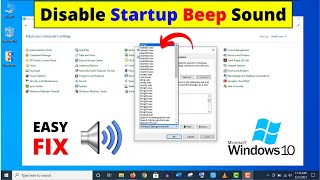
- Open the Control Panel. You can type “Control Panel” in the Start menu search bar and press Enter.
- Click “Hardware and Sound”, then select “Sound”.
- In the “Sounds” tab, locate the “Windows Logon” event in the list of program events.
- From the “Sounds” dropdown menu, choose (None) to disable the sound.
- Click “Apply” and then “OK” to save the change.
![How to Enable or Disable Startup Sound in Windows 11 [Customize]](https://i.ytimg.com/vi/xD3aifA0ESY/mqdefault.jpg)