How to Screenshot an Image on Windows: Complete Guide
Windows offers several built‑in ways to capture anything on your screen, whether you need a quick snapshot of a full‑screen game, a specific window, or a custom‑shaped region. This article walks you through each method, explains where the files are saved, and helps you choose the best tool for your workflow.
1. The Classic Print Screen Key
The Print Screen (PrtScn) key has been the default screenshot shortcut for decades. It works in three basic modes:
- Full‑screen capture: Press PrtScn alone. The entire screen is copied to the clipboard. Open Paint, Word, or any image editor, paste (Ctrl + V), and save the file.
- Active window capture: Hold Alt and press PrtScn. Only the currently active window is copied to the clipboard, ready for pasting.
- Automatic file save: On Windows 10 and later, press Windows + PrtScn. The screen flashes, and the image is saved directly to Pictures → Screenshots as a PNG file.
2. Using the Snipping Tool (Windows 10) or Snip & Sketch (Windows 11)
Microsoft’s Snipping Tool (renamed Snip & Sketch in Windows 11) provides more control over the capture area.
- Open the tool by typing “Snipping Tool” or “Snip & Sketch” in the Start menu.
- Select the snip shape you need:
- Rectangular – drag a rectangle around the area.
- Free‑form – draw any shape with your mouse.
- Window – click a window to capture it.
- Full‑screen – capture the entire screen.
- After the snip appears, you can annotate, copy, or save it. By default, saved images go to the Pictures → Screenshots folder.
3. Quick Capture with the Windows + Shift + S Shortcut
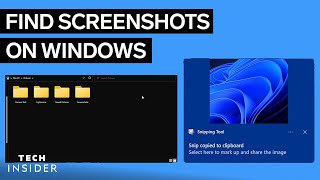
The Windows + Shift + S shortcut launches the Snip & Sketch overlay without opening the full app. Choose a shape (rectangular, free‑form, window, or full‑screen) and the selected area is copied to the clipboard. Paste it into any program, or click the notification that appears to open the snip in Snip & Sketch for further editing.




![How to take screenshot & blur/hide text or images using snipping tool on Windows - 2020 - [English]](https://i.ytimg.com/vi/_Y2IRPeOHpA/mqdefault.jpg)