Introduction to Streaming Local Video Files
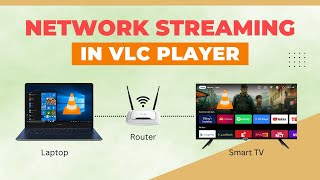
Streaming local video files from your PC to your Roku TV can be a convenient way to enjoy your favorite movies and TV shows on the big screen. One popular method for achieving this is by using VLC, a free and open-source media player that supports a wide range of file formats. In this article, we will guide you through the process of how to stream local video files from your PC to your Roku TV using VLC.
System Requirements
Before you begin, make sure your PC and Roku TV meet the necessary system requirements. You will need a PC with VLC installed, a Roku TV with internet connectivity, and a stable network connection. Additionally, ensure that your PC and Roku TV are connected to the same network for seamless streaming.
Setting Up VLC for Streaming
To stream local video files from your PC to your Roku TV using VLC, you need to set up VLC as a media server. Here's how to do it:
- Open VLC on your PC and go to Media > Stream.
- Click on File and select the video file you want to stream.
- Click on Stream and select HTTP as the destination.
- Set the Port to a custom value, such as 8080, and click on Stream.
VLC will now start streaming the selected video file to the specified port.
Configuring Roku TV for Streaming
To receive the stream on your Roku TV, you need to install the Roku Media Player channel. Here's how to do it:
- Go to the Roku Channel Store on your Roku TV.
- Search for Roku Media Player and select the channel.
- Click on Add Channel to install the channel.
Once the channel is installed, you can access it from the Home screen on your Roku TV.
Streaming Local Video Files to Roku TV
Now that you have set up VLC as a media server and installed the Roku Media Player channel on your Roku TV, you can start streaming local video files. Here's how to do it:
- Open the Roku Media Player channel on your Roku TV.
- Select Play from PC or NAS and then select PC.
- Enter the IP address of your PC and the port number you specified in VLC (e.g., http://192.168.1.100:8080).
- Click on OK to connect to the VLC stream.
Your Roku TV will now start playing the video file that is being streamed from your PC using VLC.
Troubleshooting Common Issues
If you encounter any issues while streaming local video files from your PC to your Roku TV using VLC, here are some troubleshooting tips:
- Check your network connection to ensure that your PC and Roku TV are connected to the same network.
- Verify that VLC is set up correctly as a media server and that the port number is correct.
- Restart your Roku TV and PC to ensure that all settings are applied correctly.
By following these troubleshooting tips, you should be able to resolve any common issues that may arise during the streaming process.
Conclusion
Streaming local video files from your PC to your Roku TV using VLC is a convenient and cost-effective way to enjoy your favorite movies and TV shows on the big screen. By following the steps outlined in this article, you can set up VLC as a media server and stream your local video files to your Roku TV with ease





![How To Open Network Stream on VLC Media Player [Guide]](https://i.ytimg.com/vi/VtQuombDZnw/mqdefault.jpg)


